Intro to Document Extraction with Docling⚓︎
Docling's document extraction module is super powerful.

It uses the NuExtract model to obtain structured data from unstructured documents (currently PDFs and images) through defining templates for the desired data.
By defining the data templates in clever ways, we can potentially extract lots of various information from a wide range of documents. This is exactly what we'll see as we go through the tutorials.
To start off, we're going to go through some simple examples of extracting information using a Kaggle dataset of scanned receipts.
So, let's get started!
Setup⚓︎
First, we're going to import all the libraries that we'll need.
## Import all the necessary libraries
import os
import zipfile
from IPython import display
from rich import print
from typing import Optional, List
from pydantic import BaseModel, Field, root_validator
from docling.datamodel.base_models import InputFormat
from docling.document_extractor import DocumentExtractor
Now that we've imported everything, let's setup our data from Kaggle. We'll download our dataset, then create a Pandas dataframe to easily visualize and work with the data.
Get dataset from Kaggle⚓︎
First, we'll create the local folder to hold the data, then download the dataset from Kaggle.
## Define file path to the data folder
file_path = '../../data/receipts'

## Create the data folder if it doesn't exist
if not os.path.exists(file_path):
    os.makedirs(file_path)
## Use Kaggle API to download the dataset to the data folder
!kaggle datasets download -d jenswalter/receipts -p ../../data/receipts
Dataset URL: https://www.kaggle.com/datasets/jenswalter/receipts
License(s): CC0-1.0
receipts.zip: Skipping, found more recently modified local copy (use --force to force download)
Now, we can extract the .zip file to get the underlying .pdfs from which we'll extract relevant data.
## Extract the .pdf files to the data folder
zip_file_path = os.path.join(file_path, 'receipts.zip')
with zipfile.ZipFile(zip_file_path, 'r') as zip_ref:
    zip_ref.extractall(file_path)
Notice that we now have lots of different receipts corresponding to different dates, locations, and services. What a great dataset to try to extract relevant data from! ✨
Let's checkout one of the receipts:
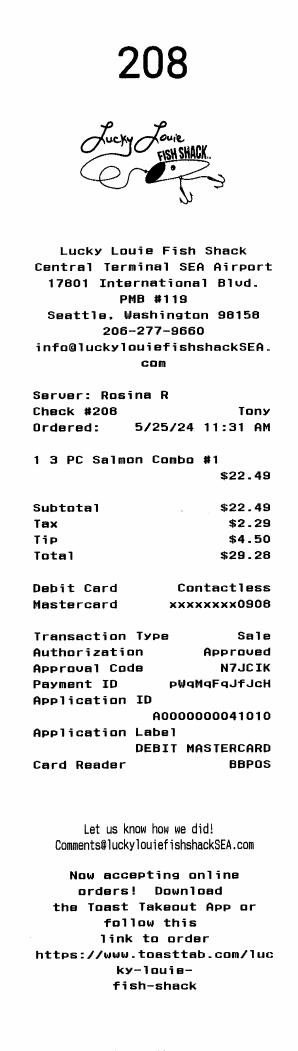
Now, we can see what type of data we might want to extract. To name a few - there's price info like total, subtotal, tax, tip; purchased item info like name, quantity, and price; establishment info like name and address; and payment method info like card transactions. In these tutorials, we'll see that this info can be extracted from a wide range of receipts quickly and easily with Docling.
Let's start simple, then we can add more complexity as we better understand how to get things working.
Extraction⚓︎
First, let's see how to define the extractor object in Docling.
Here, we're using Docling's DocumentExtractor which can take in a number of allowed input formats. As of writing this, the only allowed formats are PDFs and images, so let's add them both.
If you look at the source code for the class, you'll see that it has two external methods that we can use for extraction: the extract method for a single PDF or image; and the extract_all method for iterative extraction of multiple sources.
As a first example, let's use the extract method on our example receipt. We need to pass this method a template which defines the information that we want to extract. An easy way to do this is by creating a dictionary:
## Create a dictionary defining the price total by giving it a `name` and a `type`
target_data = {'total': 'float'}
## Extract the target data from the receipt
result = extractor.extract(
    source=receipt_file,
    template=target_data,
)
print(result)
ExtractionResult(
    input=InputDocument(
        file=PureWindowsPath('luckylouie_20240529_001.pdf'),
        document_hash='422ee7a6a8115deb39be771a95f0c3e9b0fc8af151f37c53fb8cde7e59c0282b',
        valid=True,
        backend_options=None,
        limits=DocumentLimits(
            max_num_pages=9223372036854775807,
            max_file_size=9223372036854775807,
            page_range=(1, 9223372036854775807)
        ),
        format=<InputFormat.PDF: 'pdf'>,
        filesize=40278,
        page_count=1
    ),
    status=<ConversionStatus.SUCCESS: 'success'>,
    errors=[],
    pages=[ExtractedPageData(page_no=1, extracted_data={'total': 29.28}, raw_text='{"total": 29.28}', errors=[])]
)
We see that the result gives a lot of information about the document that we processed and the pipeline that we used. It also gives the extracted data from each of the input pages. Let's look at the data it extracted more closely:
{'total': 29.28}
Yep, looks like it works! What about adding the subtotal to the target data?
target_data = {
'total': 'float',
'subtotal': 'float'
}
result = extractor.extract(
source=receipt_file,
template=target_data,
)
for page in result.pages:
    print(page.extracted_data)
{'total': 29.28, 'subtotal': 22.49}
Still working great! Seems like it can tell the difference between total and subtotal without much guidance. But, what about something that isn't explicitly written on the receipt, like customer (I assume that's Tony)?
target_data = {
    'total': 'float',
    'subtotal': 'float',
    'customer': 'str'
}

result = extractor.extract(
    source=receipt_file,
    template=target_data,
)

for page in result.pages:
    print(page.extracted_data)
{'total': 29.28, 'subtotal': 22.49, 'customer': 'Tony'}
Ha! 😂 What a boss. If it can do that, extracting the server as well is probably doable:
target_data = {
    'total': 'float',
    'subtotal': 'float',
    'customer': 'str',
    'server': 'str'
}

result = extractor.extract(
    source=receipt_file,
    template=target_data,
)

for page in result.pages:
    print(page.extracted_data)
{'total': 29.28, 'subtotal': 22.49, 'customer': 'Tony', 'server': 'Rosina R'}
There we go. How awesome is that? There's so much power here and it's so simple to use!
Let's add a bit more control by using Pydantic to describe our target data instead of a simple dictionary. We can define a specific Receipt class as a BaseModel with Fields describing our target data pieces:
class Receipt(BaseModel):
    total: float = Field(
        default=None,
        examples=[10]
    )
    subtotal: Optional[float] = Field(
        default=None,
        examples=[10]
    )
    customer: Optional[float] = Field(
        default=None,
        examples=["Anima"]
    )
    server: Optional[float] = Field(
        default=None,
        examples=["Anima"]
    )
I've defined all the target values that we used earlier with None default values and a example for each. Also, everything but the total is taken as optional, since not all receipts will have the relevant information.
From what I can tell, adding a
descriptionargument to theFielddoesn't do anything. See theExtractionTemplateFactoryclass here for more details.
Now we can pass in our Receipt model to the extractor:
result = extractor.extract(
    source=receipt_file,
    template=Receipt,
)

for page in result.pages:
    print(page.extracted_data)
{'total': 29.28, 'subtotal': 22.49, 'customer': 'Tony', 'server': 'Rosina R'}
Great, looks like it's still working! We'll be able to control our target data a bit more with this method. We can define as many BaseModels as we want and combine them together to get complex structures of target data.
Let's take the purchased items as an example. For each purchased item, we'll want to extract the name, the quantity, and the price of the item. Since we know that receipts will typically list each of the purchased items, we can first define a PurchasedItem model, then add a list of purchased_items to our Receipt model.
## Define the PurchasedItem model describing a single item listed on the reciept
class PurchasedItem(BaseModel):
    name: Optional[str] = Field(
        default=None,
        examples=["Item"]
    )
    quantity: Optional[int] = Field(
        default=None,
        examples=[1]
    )
    price: Optional[float] = Field(
        default=None,
        examples=[10]
    )

## Now add a `purchased_items` variable from the `PurchasedItem` model
class Receipt(BaseModel):
    total: float = Field(
        default=None,
        examples=[10]
    )
    subtotal: Optional[float] = Field(
        default=None,
        examples=[10]
    )
    customer: Optional[float] = Field(
        default=None,
        examples=["Anima"]
    )
    server: Optional[float] = Field(
        default=None,
        examples=["Anima"]
    )
    purchased_items: Optional[List[PurchasedItem]] = Field(
        default=[PurchasedItem()],
        examples=[[PurchasedItem()]]
    )
Here, we've defined the purchased_items variable as a list of PurchasedItem models. We define the default and example as a list of one default PurchasedItem. Let's see how it does:
result = extractor.extract(
    source=receipt_file,
    template=Receipt,
)

for page in result.pages:
    print(page.extracted_data)
{
    'total': 29.28,
    'subtotal': 22.49,
    'customer': 'Tony',
    'server': 'Rosina R',
    'purchased_items': [{'name': '1 3 PC Salmon Combo #1', 'quantity': 1, 'price': 22.49}]
}
And that's how simple it is to extract complex data from unstructured documents using Docling!
Stay tuned for the next tutorial, where we'll add even more complexity to our model and see how it holds up against different types of receipts.